PHANTASY STAR UNIVERSE Ambition of the Illuminus Online Manual
PHANTASY STAR UNIVERSE Online ManualBasics
Registering a PSU ID (Windows PC)
To play the Windows version of "PHANTASY STAR UNIVERSE Ambition of the Illuminus" (hereafter "Ambition of the Illuminus"), you need a PSU ID (free to register).
Register a PSU ID using a PC or mobile phone. On a PC you need Internet Explorer 6.0 or later. On a mobile phone you can use any Docomo / au / SoftBank phone that can connect to the internet with SSL.
If you already have a PSU ID, or are continuing from the previous game "PSU", you do not need to register a new PSU ID.
PSU ID registration steps
Once you have a PC or mobile phone that meets the conditions above, register your PSU ID by following the steps below.
Registering a PSU ID on a PC
- STEP1
-
Open the PSU ID new registration page.
Open the new registration page in Internet Explorer 6.0 or later.

- STEP2
-
Enter your email address. (Review the terms of use)
Read the terms of use carefully, enter your email address, and click the "Agree to the terms below and send" button.
Click the URL in the email you receive to go to the registration details page.

- STEP3
-
Enter your registration details and confirm them.
Fill in each item needed to use services with your PSU ID.
Please note that if you enter incorrect information, you may not receive important notices or support.

- STEP4
-
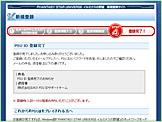
PSU ID registration complete!
Your PSU ID is now registered. Keep your PSU ID and password safe so you do not lose them.
Registering a PSU ID with a mobile phone
- STEP1
-
Open the mobile billing and registration site.
On a mobile phone (Docomo / au / SoftBank) that can connect to the internet with SSL, scan the QR code (left) or enter the URL (http://segapsu.jp) directly to open the PSU ID management page.
- The PSU ID management page also carries the latest news.

- STEP2
-
To the PSU ID new member registration page
Check the list of supported models at the bottom of the billing and registration site, then click the "Register here" button to open the PSU ID login page. Go to the new registration page via "New registration" at the bottom of the page.

- STEP3-1
-
Send a blank email.
After reading and agreeing to the terms, send a blank email to the address shown, and you will receive a reply with instructions. Open the URL in the reply to go to the registration page.
- STEP3-2
-
Register your email address.
If you would rather not register by blank email, choose this option, read and agree to the terms, and enter your email address. An email with instructions is sent to that address.
- STEP4
-
Enter your registration details and confirm them.
Fill in each item needed to use PSU ID services. Please note that if you enter incorrect information, you may not receive important notices or support.

- STEP5
-
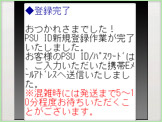
PSU ID registration complete!
Your PSU ID is now registered. Keep your PSU ID and password safe so you do not lose them.