PHANTASY STAR UNIVERSE Ambition of the Illuminus Online Manual
PHANTASY STAR UNIVERSE Online ManualBasics
Installation (Windows PC)
Install "PHANTASY STAR UNIVERSE Ambition of the Illuminus" on Windows.
You also need the latest version of DirectX to play.
Installation steps
Follow the steps below to install. If you are running utilities or applications such as antivirus programs, close them before starting the installation. They may interfere with it.
- On Windows Vista or Windows 7, a User Account Control dialog opens when you install or start the game. Click "Allow", "Continue" or "Yes" to continue installing or playing.
Downloading and installing the client software
To download and install the client software, see the page below.
Installing from the packaged version
- STEP1
-
Insert the DVD-ROM into the drive.
Start Windows and insert DVD-ROM DISC 1 of this software into the DVD drive; the setup menu appears automatically. If it does not, double-click "autorun.exe" on this software's DVD in My Computer to show the setup menu.

- STEP2
-
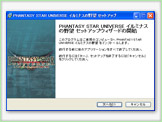
Start the installation.
Click "Install Phantasy Star Universe: Ambition of the Illuminus" in the setup menu. The installation setup window opens; read the notice and click "Next".
- STEP3
-
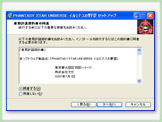
Review the license agreement.
Before starting the installation, read the license agreement carefully. You must accept it to continue installing.
- STEP4
-
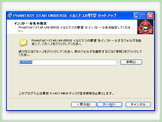
Choose the install location.
Choose the folder to install this software to. To use a different folder, click "Browse" and select the folder you want to install to.
- STEP5
-
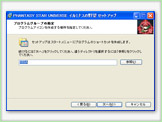
Choose the program group.
Choose where to create the program icons. To choose a different directory, click "Browse" and select it.
- STEP6
-
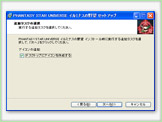
Set up the desktop icon.
Choose whether to create a desktop icon, then click "Next".
- STEP7
-
An information screen appears.
Information about PSU ID registration is shown. Read it carefully, then click "Next".

- STEP8
-
Installation to your computer begins.
Once the settings are done, "PHANTASY STAR UNIVERSE Ambition of the Illuminus" starts installing to your computer. Please wait until it finishes.

- STEP9
-
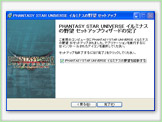
Installation complete!
The installation is now finished. If the latest version of DirectX is not installed, continue with installing DirectX.
Installing DirectX
To play this software, DirectX 9.0c must be installed on your PC. If it is not, select "Install DirectX" in the setup menu and follow the on-screen instructions.
For details on how to check your DirectX version, see the page below.