PHANTASY STAR UNIVERSE Ambition of the Illuminus Online Manual
PHANTASY STAR UNIVERSE Online ManualMissions
Mission Counter
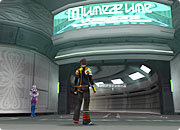
At the "mission counter" you can accept all kinds of missions.
There are mission counters all over each city. In Guardians Colony, Clyez City, they include the Guardians Headquarters, the Linear Line platform and the spaceship dock.
Accepting any mission from the Guardians Headquarters / branch offices
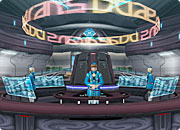
At the "Free Mission Counter" in the Guardians Headquarters / branch offices, you can accept every free mission on the planet you are on.
Select a lobby from the "Free Mission Counter", then choose one of the counters in that lobby.
How to accept a mission
This explains how to accept a mission at the "Free Mission Counter" in the Guardians Headquarters / branch offices.
- Some steps differ depending on the type of mission.
- STEP1
-
Talk to the NPC.
Talk to the NPC at the mission counter. When the choices appear, select "Free Mission Counter".
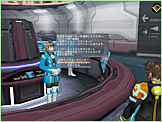
- At some types of mission counters, STEP 2 and 3 are skipped when accepting a mission.
- STEP2
-
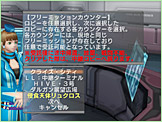
Select a lobby.
A list of lobbies on that planet is shown. Select one of them.
- STEP3
-
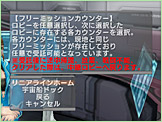
Select a counter.
After you select a lobby, a list of its counters is shown. Selecting a counter starts the mission counter.
- STEP4
-
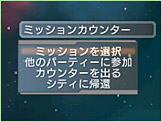
Select "Select mission".
Select "Select mission" from the mission counter menu.
- STEP5
-
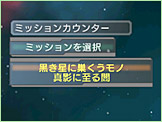
Select the mission you want to accept.
A list of missions is shown; choose the one you want to accept.
- STEP6
-
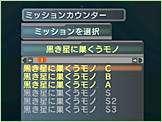
Select the mission difficulty.
The same mission may be listed several times, once for each difficulty. Select the mission with the difficulty you want.
For mission difficulty, see here.
- STEP7
-
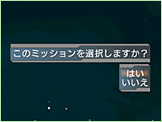
Check the mission details.
The mission confirmation screen is shown. If everything is correct, select "Yes".
- STEP8
-
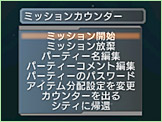
Select "Start mission".
Once you accept a mission, the mission details menu is shown. Select "Start mission".
- STEP9
-
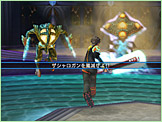
The mission starts.
The mission starts.
The mission ends when you clear the stage, when you are incapacitated, or when you return to the lobby partway through and abandon it.
Mission counter menu
Select mission
Accepts the selected mission.
Join another party
Lets you join another party that is already playing a mission.
Leave counter
Returns you to the mission counter entrance.
Return to city
Shown only in field lobbies. Returns you to the city.
Mission details menu
Start mission
Starts the mission.
Abandon mission
Abandons the accepted mission and returns you to the lobby list.
Edit party name
Lets you change the party's name to anything you like.
Edit party comment
Lets you enter the comment shown in the party list.
Party password
Sets a password of up to 4 digits. Once set, other players cannot join the mission partway through without entering the correct password.
Change item distribution settings
Changes how items are distributed.
Leave counter
Returns you to the mission counter entrance.
Return to city
Shown only in field lobbies. Returns you to the city.